Coming soon to Android

Keep track of your food stock.
Be prepared.

Scan your items, see how many days of food and water your household has, and get a reminder before anything expires. No account, no ads, no tracking.

Android now. iPhone later.

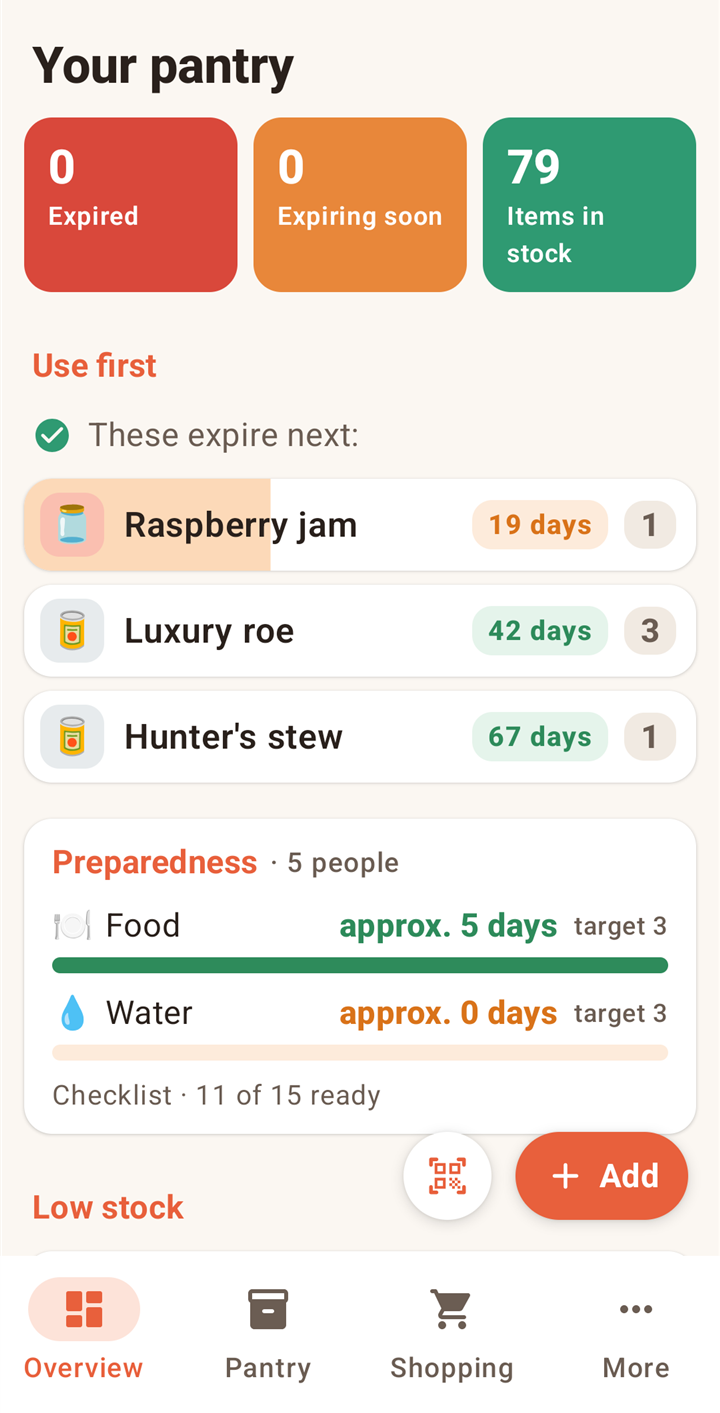
Pantrio overview: counts for expired, expiring soon and in stock, the Use first list and categories

Features

Everything a pantry needs

Pantrio is built for long-term stock and preparedness: cans, dry goods, water and the things you want to have on hand. And for the everyday shopping list.

πŸ“·

Scan and done

Scan the barcode and the app finds the name, brand and picture in Open Food Facts. You just pick the expiry date and the quantity.

⏰

See what expires

Rows fill with colour as the expiry date gets closer. You get one daily reminder with what needs to be used now.

πŸ›Ÿ

Preparedness in days

See how many days of food and water your stock covers for your household, and follow a checklist based on your country's official advice.

❄️

The freezer

Mark a location as a freezer and the app counts days in the freezer instead of expiry. Nothing gets forgotten at the bottom of the chest.

πŸ›’

Shopping list

Grouped by category like the best shopping apps. Set a minimum and a target on items and see what is running low.

πŸ—‚οΈ

Categories and locations

Your own categories with colour and emoji. Browse by category or by where the item is kept: kitchen cupboard, pantry, basement.

πŸ“¦

Batches and units

Five cans with five dates show as five rows in date order. Count in pieces, grams, kg, litres, bags or packs.

πŸ’Ύ

Backup and import

Save a backup file including your own pictures and restore it on a new phone. Import your stock from another app via .xls or .csv.

πŸ₯«Chopped tomatoesβˆ’5 days2
🍝Spaghetti9 days3
πŸ«™Raspberry jam22 days1
🐟Tuna in water310 days6
πŸ₯©Burger patties❄ 12 days4
πŸ’§Drinking water2 years12 l

Guide

How to use Pantrio

From first launch to a stock you are on top of. This is how most people use the app.

1

Get started in a minute

The first time you open the app you pick the categories and locations you want to use. There are suggestions such as Canned food, Dry goods, Drinks and Kitchen cupboard, Pantry, Freezer. You can always add more later under More.

If you have a backup from another phone, restore it straight from the welcome screen.
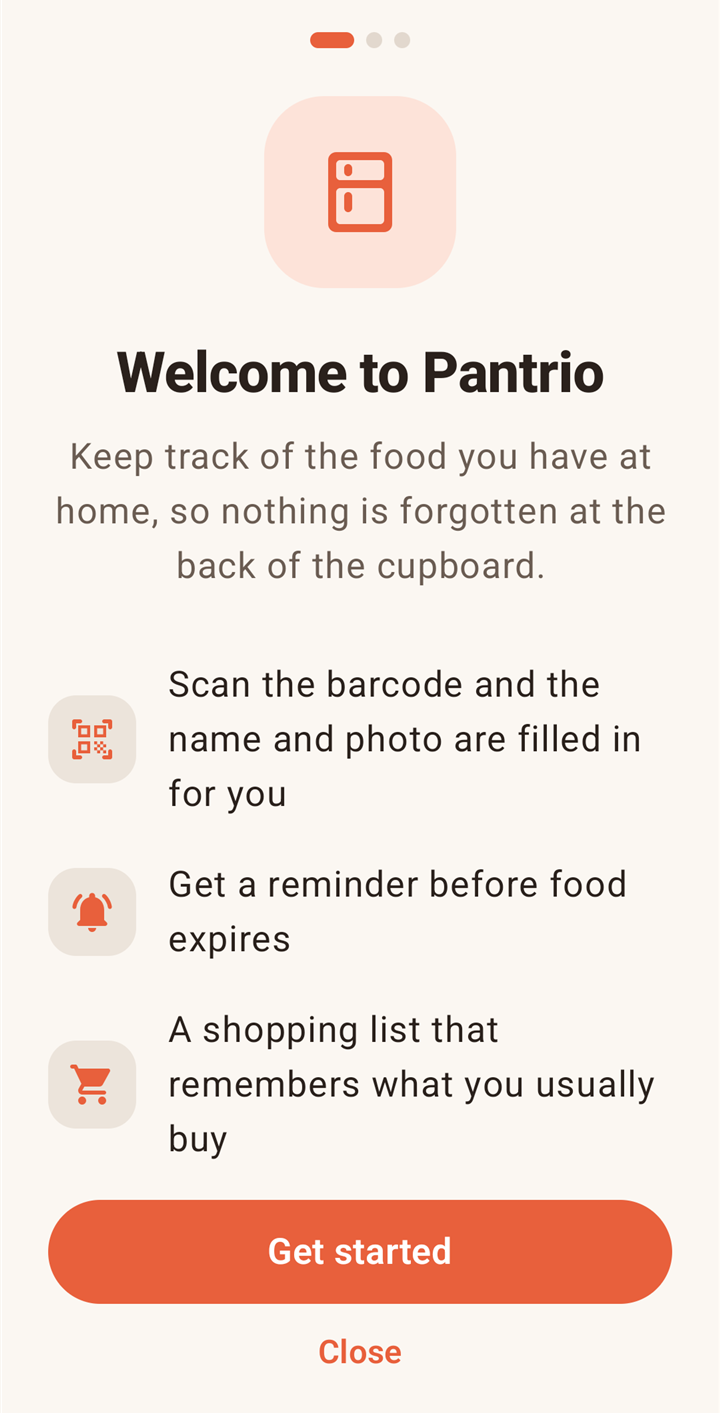
Welcome screen with starter categories
2

Scan your items

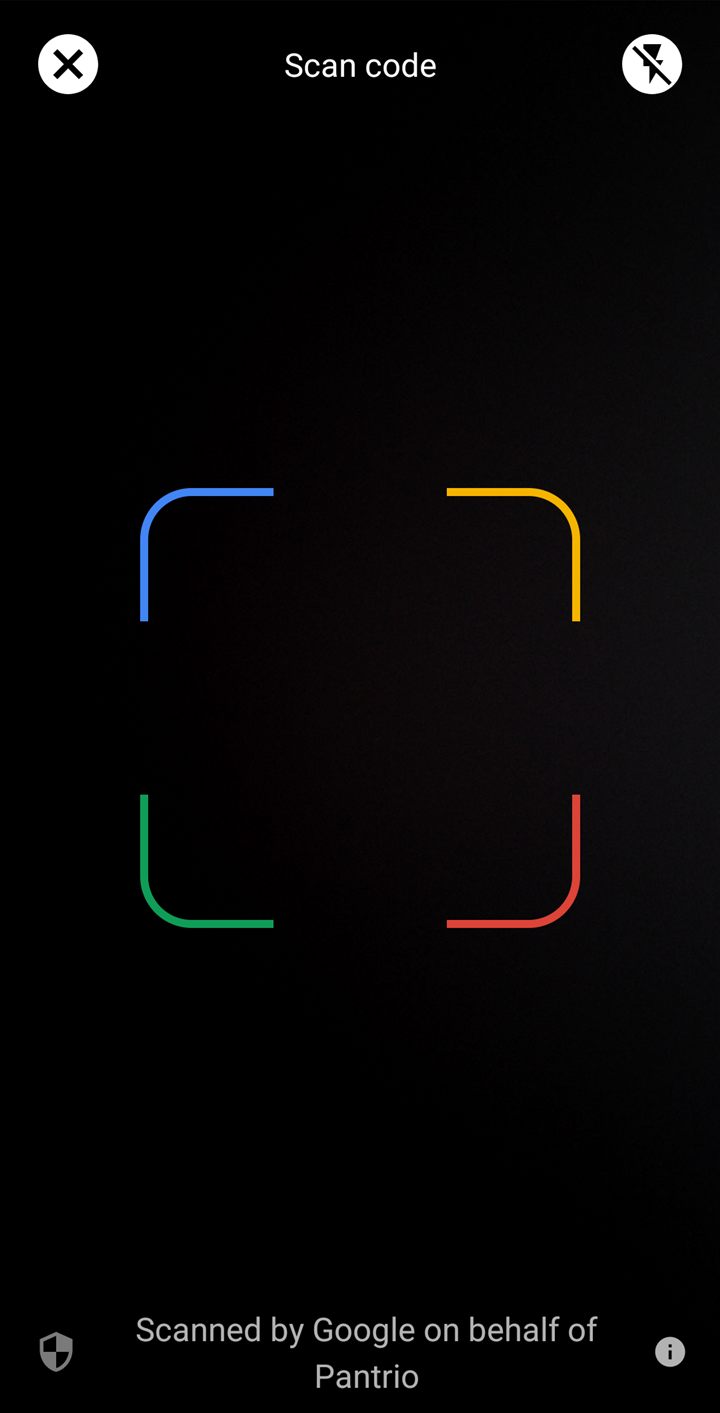
Tap the scan button and point the camera at the barcode. The app finds the name, brand and picture, and you choose the expiry date with quick buttons and the quantity with + and βˆ’.

  • Known item: Scanning something you already have shows its batches with + and βˆ’. Plus adds one to stock, minus takes one out when you use it.
  • No barcode: Tap + Add and type it yourself. You can take a photo or pick one from the gallery.
Scanning a barcode and the Add to stock dialog
3

Overview every day

The Overview tab shows three numbers: expired, expiring soon and items in stock. Below are Use first with what needs using now, the Preparedness card, Low stock and shortcuts to your categories.

You decide what "soon" means: the thresholds for red, orange and yellow are set in days under More.

Overview with stat cards, Use first and Low stock
4

Stock: every item on one screen

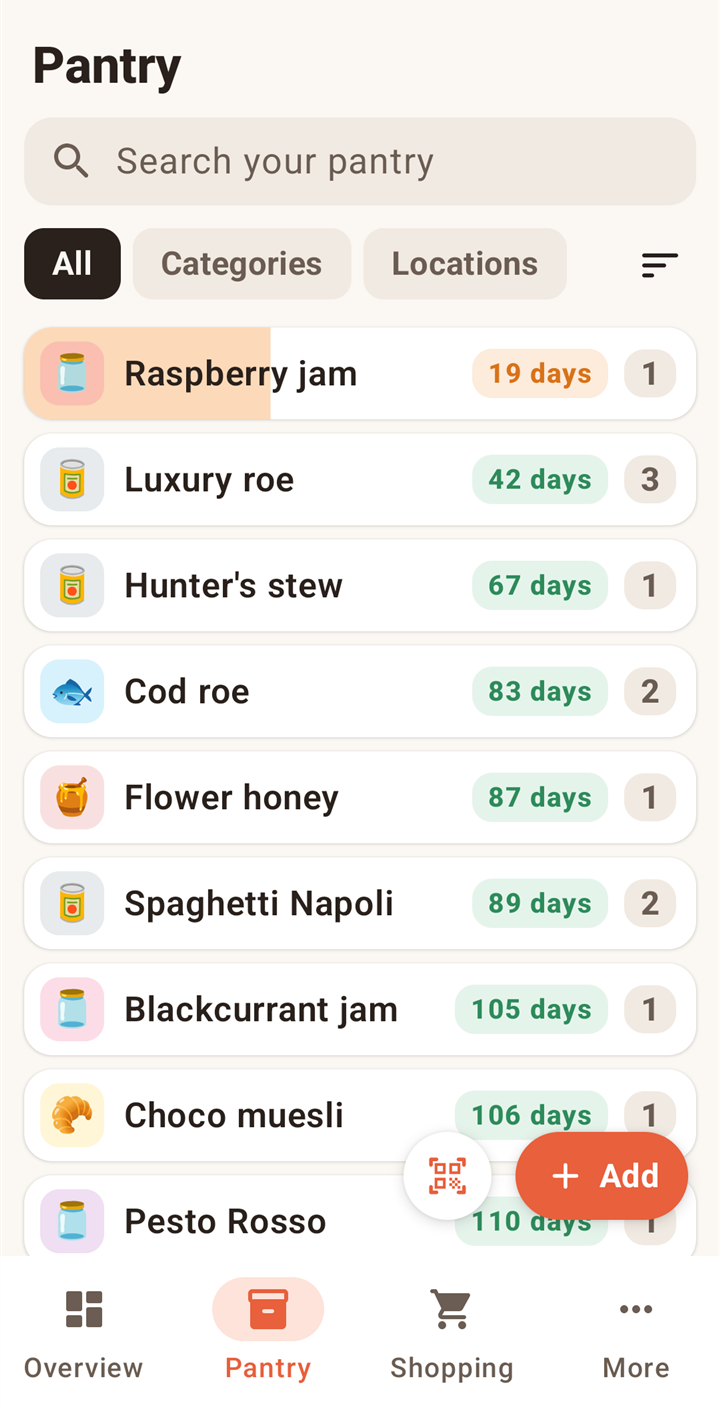
The Stock tab shows compact rows, so about 12 items fit on the screen. View them as All, by Categories or by Locations, and sort by expiry date, name or category.

Each row shows days until expiry and the quantity in stock. The closer to expiry, the more the row fills with colour. Tap a row to see the item.

The stock list with search, categories and locations
5

Item details

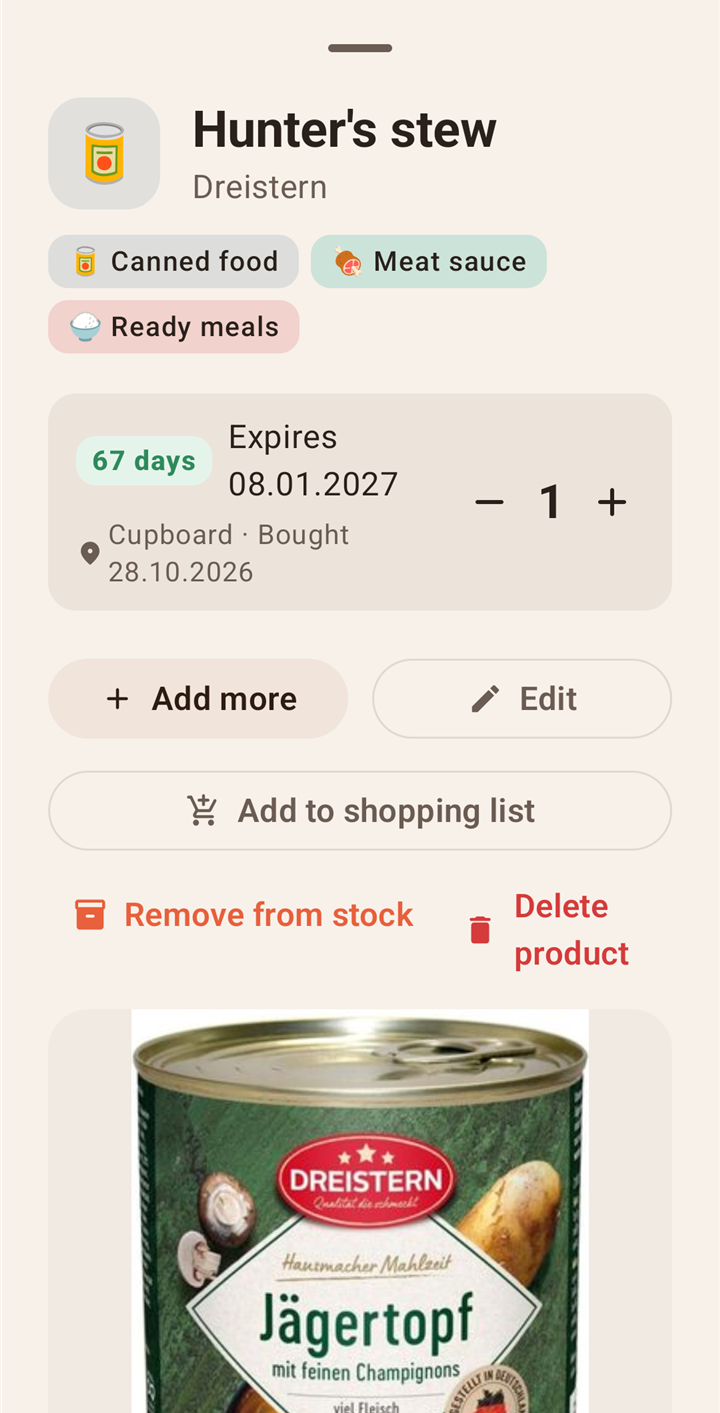
A tap opens the item from the bottom: batches with expiry date, location and + and βˆ’, the buttons Add more, Edit, Put on shopping list, Remove from stock and Delete item, and the picture in full size at the bottom.

Removed something by mistake? There is Undo for ten seconds.

Item details with batches and buttons
6

The shopping list

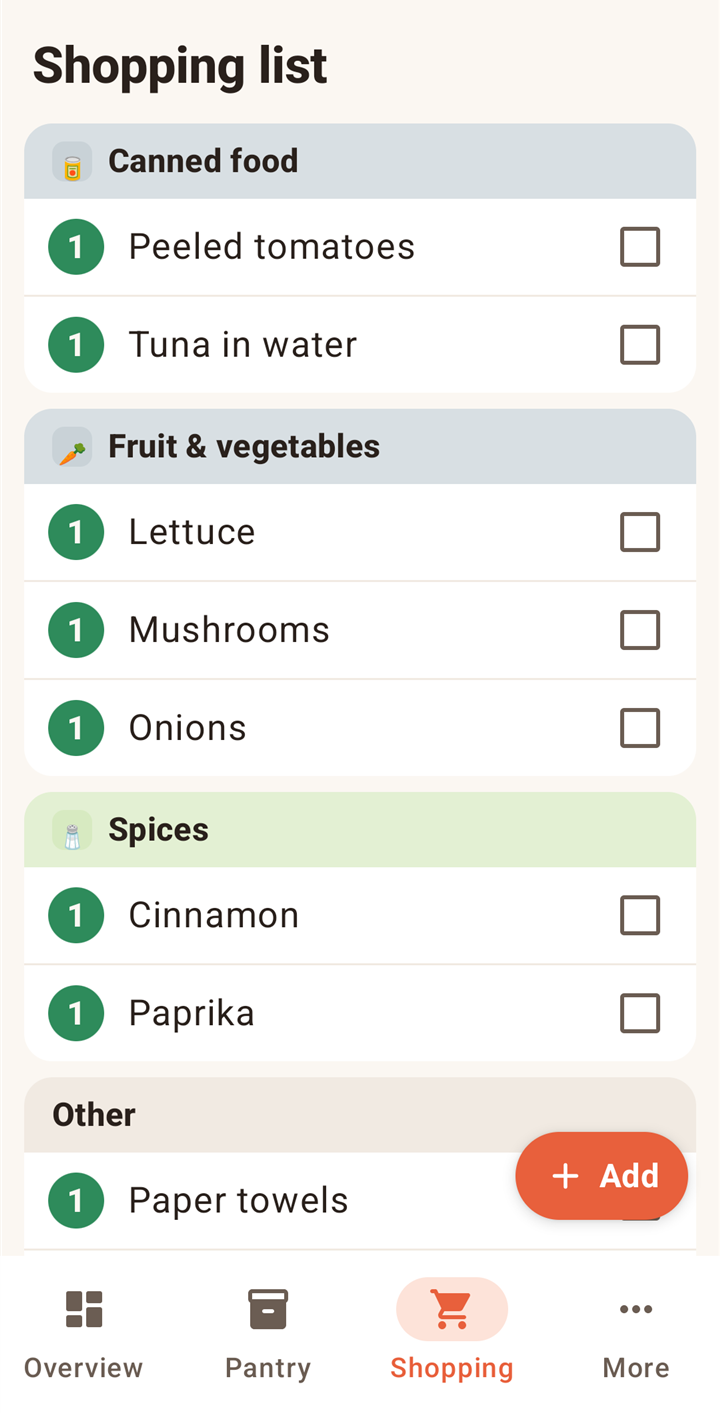
Items are grouped by category with a green bubble showing the quantity and a checkmark on the right. Checked items move down under "Show bought items", and you can undo for five seconds.

Give an item a minimum ("Always keep at least") and a target ("Fill up to") under Edit item. It then appears under Low in stock at the top of the list when it is running out, and one tap adds the missing quantity to the list.

Shopping list grouped by category
7

Preparedness: how long will it last?

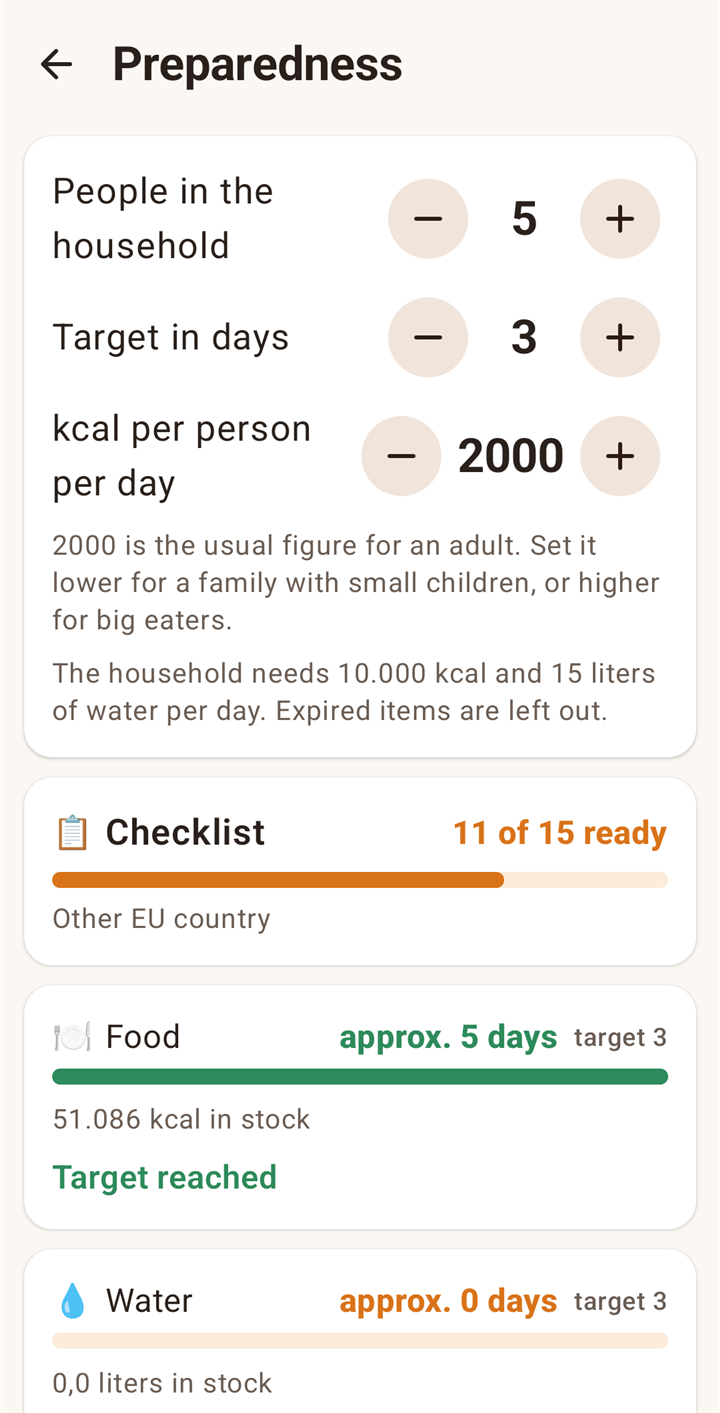
Tell the app how many people are in your household and how many days you want to be able to manage. Pantrio counts food in calories and water in litres and shows "Food approx. 9 days" and "Water approx. 2 days" with bars against your target.

Calories and package size come from Open Food Facts when you scan, or are estimated from the name. You can always correct the numbers yourself.

Preparedness screen with coverage in days for food and water
8

The checklist for your country

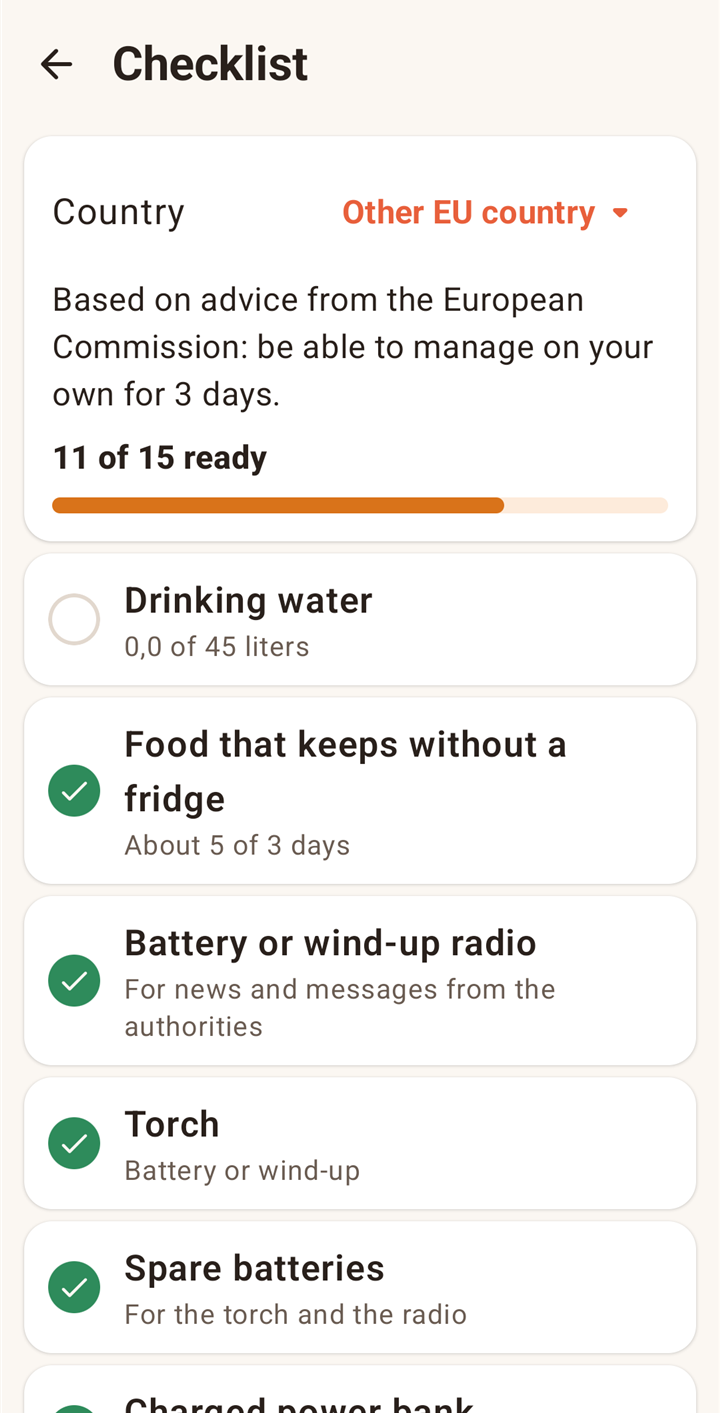
Pick your country and you get the official recommended list: water, food, medicine, first aid, torch, batteries, radio, cash and more. Water and food are ticked automatically when your stock covers it. The rest you link to items in your stock or tick with "I have this".

Preparedness checklist with items per country
9

More: reminders, colours and backup

  • Reminders: one notification a day at the time you choose, with what is expiring and what is low.
  • Expiry colours: red, orange and yellow in days. Red also controls "Expiring soon".
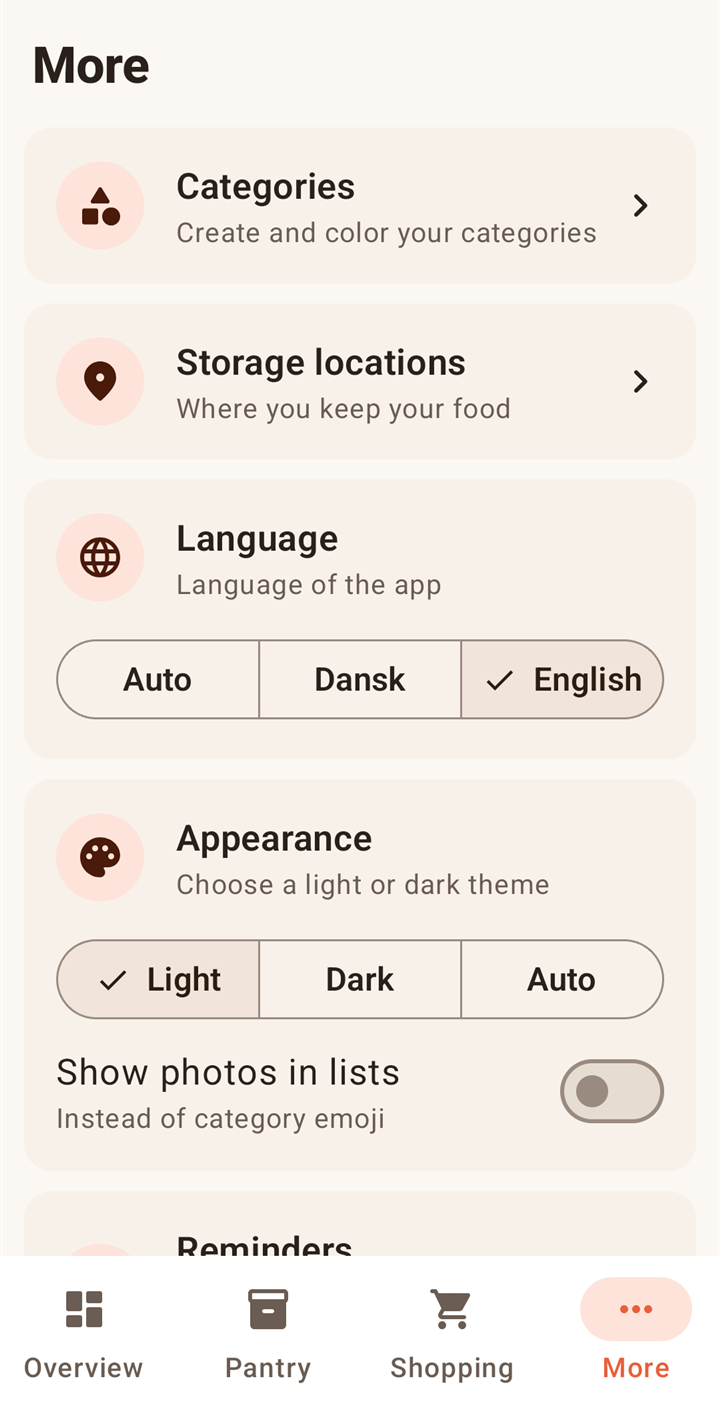
  • Theme and language: light, dark or auto. Danish and English.
  • Backup: save everything as one file, including your pictures, and restore it on another phone.
  • Import from another app: read an .xls or .csv export so you do not have to type everything again.
The More screen with settings

Preparedness

Do you know how many days you could manage?

Authorities across Europe recommend that households can manage on their own for at least three days during a power cut, flood or crisis. Some countries say a week. Pantrio shows whether your stock is there, and what is missing.

Checklists are available for:

πŸ‡©πŸ‡° Denmark Β· 3 days πŸ‡ΈπŸ‡ͺ Sweden Β· 7 days πŸ‡³πŸ‡΄ Norway Β· 7 days πŸ‡©πŸ‡ͺ Germany Β· 10 days πŸ‡¬πŸ‡§ United Kingdom Β· 3 days πŸ‡ΊπŸ‡Έ USA Β· 3 days πŸ‡ͺπŸ‡Ί Other EU Β· 72 hours
Preparedness2 people Β· target 7 days
Foodapprox. 9 days
Waterapprox. 2 days

Without the freezer: approx. 6 days of food Β· Missing approx. 30 litres of water

πŸ“‹ Checklist Β· 6 of 14 done

FAQ

Frequently asked questions

Do I need an account?

No. Pantrio works without an account and everything is stored on your phone. You can save a backup file whenever you like.

What happens to my data?

It stays on your phone. The only thing the app sends out is the barcode number to Open Food Facts when you scan an item. Read the privacy policy.

What if the item is not in Open Food Facts?

Then you type the name yourself and the app remembers the barcode for next time. You can take a picture of the item so it is easy to recognise.

Can I move my stock from another app?

Yes. Export from the old app to .xls or .csv and choose "Import from another app" under More. Pantrio finds the columns itself and merges the same item with several dates into one item.

Does it work on iPhone?

Not yet. The app is built so it can come to iPhone later.

Does it cost anything?

The app is free to download. Some features may later become part of Premium.

Your data is yours

No account, no ads and no tracking. Your stock and your pictures stay on your phone, and you can always save a backup file. Read the privacy policy.